System Information
| Field |
Value |
| Operating System |
Linux - Debian GNU/Linux 12 on x86_64 |
| Product |
AMP ‘Phobos’ v2.6.2.2 (Mainline) |
| Virtualization |
Docker |
| Application |
Minecraft |
| Module |
MinecraftModule |
| Running in Container |
Yes |
| Current State |
Failed |
Problem Description
Issue
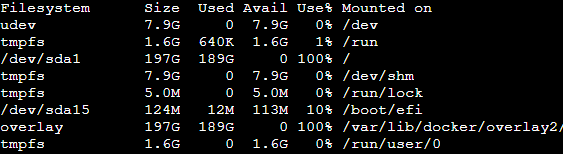
I have checked the server’s log reports and it seems the server cannot start because there is not enough available storage, but I don’t know why this is. Apparently I have used 189 GB of storage but this cannot be the case. I only seem to have made only 1 backup which is 46 GB big, so I don’t know where the extra 100 GB is from. Furthermore, it’s not letting me trash/ delete anything either, which is a new one.
Reproduction Steps
- gone into filezilla and deleted large files
- tried to start the server
- updated amp
- tried and failed to create a new backup
- tried and failed to find out where the large storage is coming from
- checked the server’s log reports
If you mean put that into the console, I can’t as the server isn’t starting. 
That’s a command for the Linux terminal
Yep, your root partition is full
Run as root:
du -h --max-depth=1 / | sort -h
to see which directories are taking the main space
Then navigate to them and run:
du -h --max-depth=1 | sort -h
to progressively dig down. Rinse and repeat
Ok I’ve done this, but I now have another problem. It is not letting me delete files. It keeps saying “Failed to trash file”. Any ideas?
Delete them in the terminal
Ok! Sorry I’m new to the terminal, any chance u know the command/ code to do that? I’ve tried “rm [filename]” but the terminal is saying that the file or directory does not exist.
EDIT:
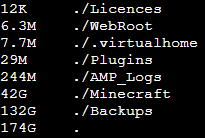
Never mind, just to update my last post, I’ve now figured it out, I was being stupid  So I’ve dug down as you said and I’ve found out that most of the storage is being stolen by backups, however I thought I only had one backup which was 45GB. So is there any way to clean up the /Backups folder without getting rid of that one backup (which I need)?
Well, obviously, delete the backups you don’t want…
Note that deleting them outside AMP won’t update AMP’s json file recording the backups, so they might show as ghosts in-panel. Not sure whether AMP auto-updates itself to reflect what is actually there
I’m not sure how I would do that. When I try to see the directories within the /Backups folder, nothing shows up. You think I could just delete all 132G inside the /Backups folder or is that gonna cause major issues?
If there is nothing in it, why do you think that is your issue?
No, there is stuff in it: 132 GB worth of stuff, but I can’t access it or see the files individually (even using the terminal), so rn it’s either delete nothing or delete all 132 GB. I could delete but I’m wondering if that would mess anything up substantially?
You can 100% see them. You’re probably trying to do so as the wrong user.
sudo su - amp to switch to the amp user
Then cd to the directory to deal with the backups
Tried that, doesn’t work 
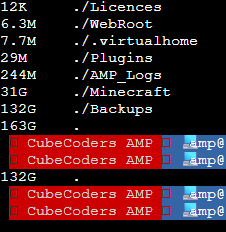
The dot in the picture is after I’ve put “cd ./Backups” and then “du -h --max-depth=1 | sort -h”.
Methinks you need to learn how to work with Linux lol
Honestly I’m trying to learn now, I did say I was new to this. Any other ideas on how to get visual access tho?
@CubeCoders-Bot try helping this user with some basic linux administration. They need to free up space on their system by manually deleting backups in the Backups directory in their Minecraft instance
Alright, you’re obviously running into storage issues that prevent your Minecraft server from starting. Let’s clean this up one step at a time—without ripping your hair out.
You mentioned earlier that your /Backups directory is hogging space (132 GB), but you can’t see specific files in it or delete them properly. We’ll start by making sure you’re looking at these files as the correct user with sufficient permissions and clear some space.
First up, switch to your AMP user in the terminal:
sudo su - amp
Then navigate back to your /Backups directory:
cd /path/to/Backups
After that, list files with a size breakdown:
du -h --max-depth=1 | sort -h
Tell me what you see when you do this. If nothing shows, it could be a permissions issue or something else fishy going on. Let’s rule that out first! 
Oh, and don’t delete rogue backups from the outside yet—I promise we’ll deal with those neatly.
 This post was produced by an AI controlled by CubeCoders Limited - Feedback
You will need to help them find the directory, I’d imagine