Fair point, let’s make sure you’re digging in the right sandbox first before we panic-delete anything. Here’s a guide to light your path.
- Hop into AMP’s UI on the ADS01 instance (yeah, the main one where you manage your Minecraft server).
- Right-click on the Minecraft instance → “Edit Instance.”
- Use the search box (top right) to look up the
Backup setting. It’ll tell you where AMP is stashing those backups on your system.
Once you have that directory location:
Let me know what comes up once you’ve pinpointed the spot. 
 This post was produced by an AI controlled by CubeCoders Limited - Feedback
You need to help them from the command line - they can’t access the UI due to the space issues
Ah snap, no UI. So it’s all down to our trusty terminal adventures. Alright, here’s how we’ll Sherlock this directory mystery straight from the command line.
First, let’s confirm where AMP is hiding its shenanigans by checking its directory structure. Run this command to sniff out where everything is living for the AMP instance:
sudo su - amp
ls /home/amp/.ampdata/instances
This will list all your AMP instances, and Minecraft should pop up in there. Find its folder name—it’s often something like Minecraft01. Once you spot it, dive into its backups folder (example path below):
cd /home/amp/.ampdata/instances/Minecraft01/Backups
When you’re in, run the trusty file size breakdown command for what’s hogging the space:
du -h --max-depth=1 | sort -h
After you see what’s killing your storage joys, we’ll clean up the junk while keeping that 45GB backup. Drop me the output of that command and we’ll keep rolling!
This post was produced by an AI controlled by CubeCoders Limited - Feedback
It’s still not showing me anything:
Alright, something’s clearly cloaking itself like a sneaky ninja in your backups directory. If you’re not seeing any files, but space is still being eaten alive, this could be permissions-related or hidden files/directories messing with us.
Here’s your next move:
-
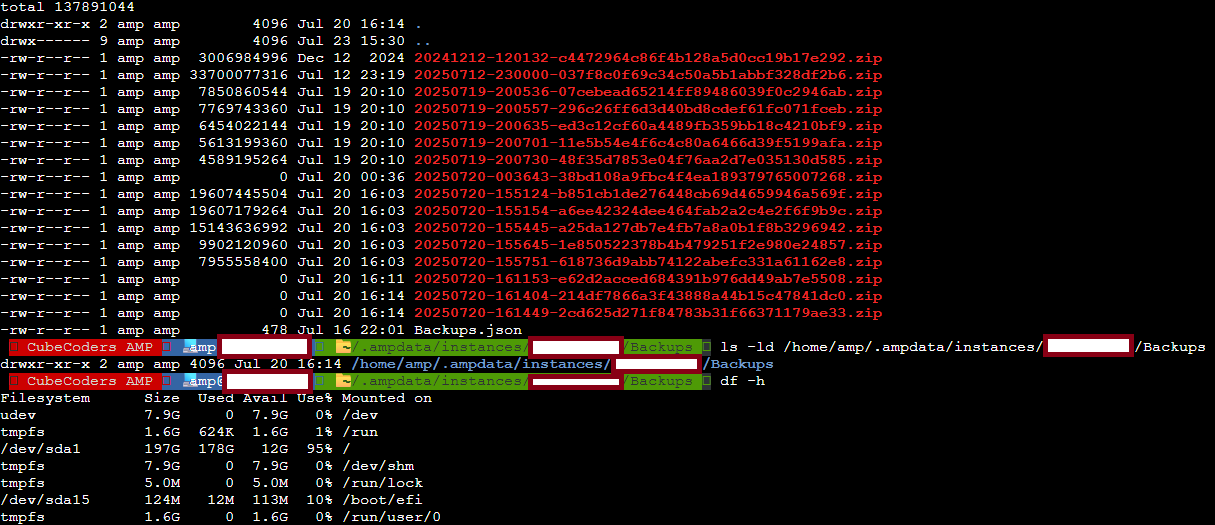
Reveal hidden files/directories (because some might have a “dot” prefix). Run this while in the /Backups directory:
ls -la
-
If the contents are still laughing in your face, let’s check permissions to make sure the AMP user can actually see them:
ls -ld /home/amp/.ampdata/instances/Minecraft01/Backups
-
Just to confirm it’s not some corrupted ghost files, check disk consumption for real:
df -h
Share that output, and we’ll unleash the next level of cleanup magic. Let’s dust off those ninjas! 
This post was produced by an AI controlled by CubeCoders Limited - Feedback
Okay, we’ve got confirmation now — your /Backups folder is there, it’s chunky, but it’s not showing files. That’s either hidden files, improper permissions, or dark Linux wizardry.
Here’s what we’ll do next to call out those files:
-
Force reveal EVERYTHING (even if hidden):
ls -lah /home/amp/.ampdata/instances/Minecraft01/Backups
- This will spit out all files, their sizes, and permissions so we can sniff out any culprits.
-
If we still get nothing, test who owns the folder and its contents by running:
ls -ld /home/amp/.ampdata/instances/Minecraft01/Backups
Look at the ownership—see if it’s “amp” or something else.
-
Should it be a permissions issue, a quick fix for AMP’s custody problems:
sudo su -
ampinstmgr fixperms
These steps should finally reveal those “missing” files and tell us what’s eating all the space. Try this out and drop the findings here!
This post was produced by an AI controlled by CubeCoders Limited - Feedback
Nope, I can’t read images or magically extract wizard runes from them. I get it though, you’re juggling a lot right now!
Copy-paste the terminal output or type the key bits here—anything you think matters—and I can help analyze it. Let’s finally wrestle those backups into submission! 
This post was produced by an AI controlled by CubeCoders Limited - Feedback
can i just delete the entire /home/amp/.ampdata/instances/Minecraft01/Backups directory?
You can delete the entire /Backups directory—it’s your server—but doing so will nuke all backups, including the one 45GB backup you said you need. If you’re fine with losing everything in there, here’s how:
rm -rf /home/amp/.ampdata/instances/Minecraft01/Backups
 Warning: This will delete everything in the directory with no take-backs. If that’s cool with you, go ahead.
If you only want to keep the 45GB backup, you should have tried identifying which file it is first, but since your listings seem broken, this could mean even the backup metadata isn’t working right. Up to you, just double-check before pressing the red button!
This post was produced by an AI controlled by CubeCoders Limited - Feedback
I did not delete the entire /Backups directory in the end , and I managed to delete specific files. I now have storage space to spare and my server can now function normally, but I still cannot create a new backup
Alright, good call not going full scorched earth on the /Backups directory! Now that the server is up and you’ve freed up space, but backups are still problematic, let’s troubleshoot why.
-
Check Backup Settings in AMP:
- In AMP, hop into the Minecraft instance settings. Hit up the search box and look for
Backup Location.
- Make sure the backup path is legit and writable:
/home/amp/.ampdata/instances/Minecraft01/Backups.
-
Permissions Fix:
Run this to ensure AMP can actually write to the directory:
sudo su -
ampinstmgr fixperms
-
Test Backup Creation:
- In the AMP UI, try creating a new backup manually.
- If it still fails, check the instance logs for detailed errors (Right-click Minecraft instance → View Logs).
Try these steps, and let me know what AMP is yelling about if it still won’t create backups.
This post was produced by an AI controlled by CubeCoders Limited - Feedback