Setting up Hytale in AMP
Note that you need to own a copy of this game in order to set up a server for it - use the account that owns the game to authorise the server.
Download of the server files on ARM hardware is not yet officially supported by the Hytale developers. However, a bespoke download solution has been implemented in AMP - this allows Hytale to be installed and run on hardware such as the Raspberry Pi or on Oracle Cloud ARM instances.
Create the instance
This part proceeds as normal, select Hytale from the Create new instance screen - but we recommend for now setting After Creation to “Do Nothing”
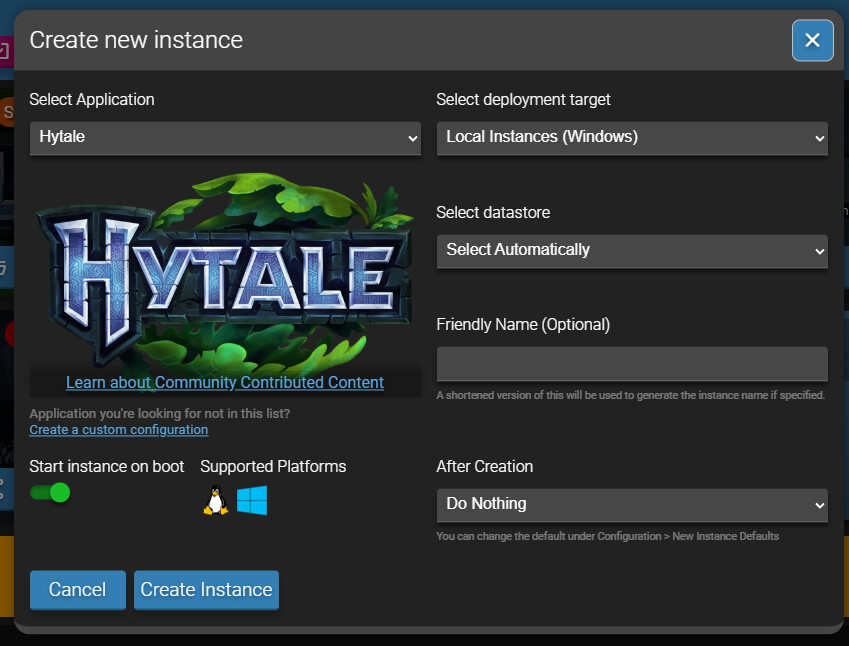
If Hytale doesn’t show in the list, then you simply need to update your repositories:
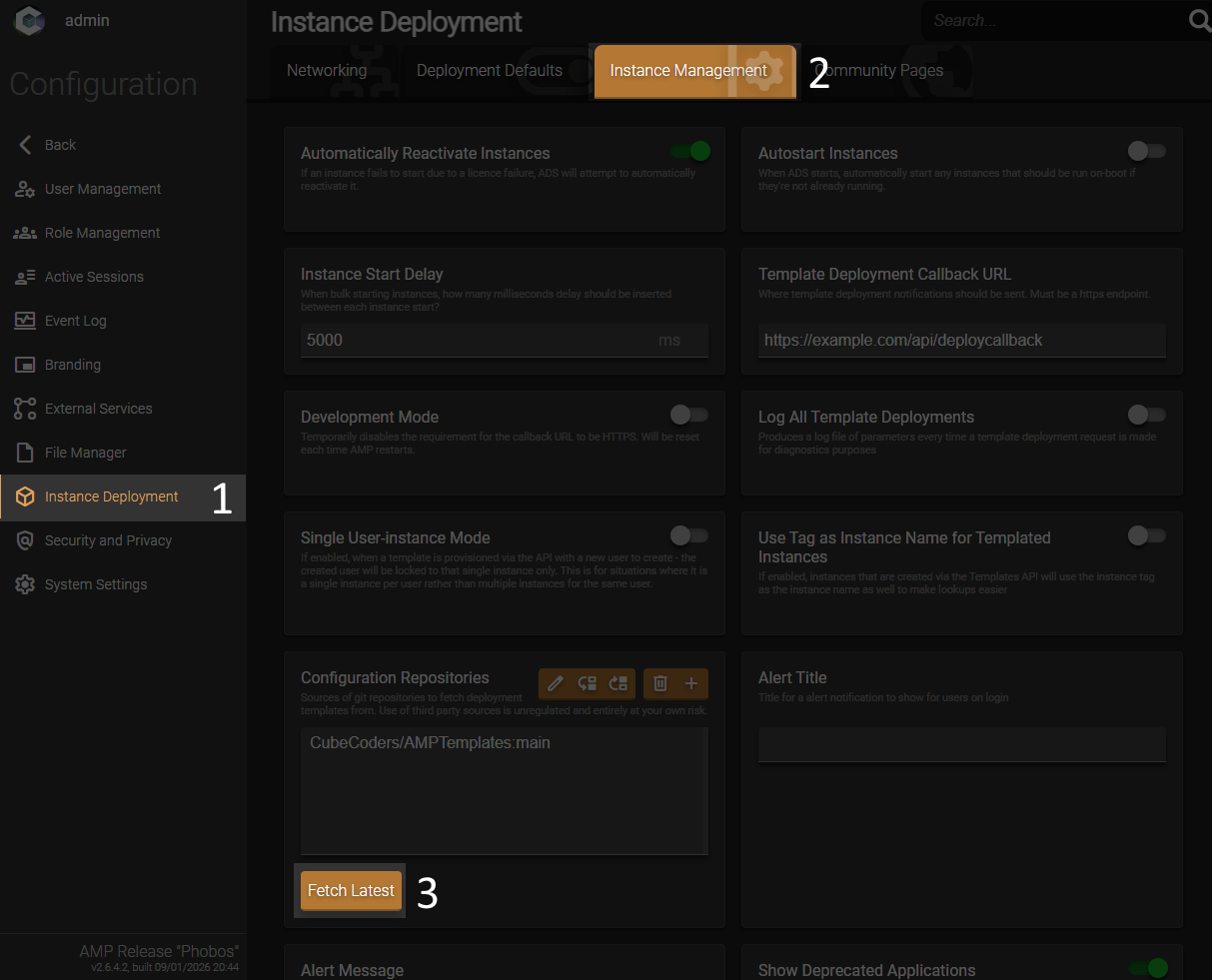
If Hytale still does not appear in the list, go into the main File Manager in AMP and delete ADS01/Plugins/ADSModule/DeploymentTemplates/CubeCoders-AMPTemplates-main. Then Fetch Latest again.
Installing and authenticating
Manage the instance and click the orange Update button. After a moment, you will see a prompt to authenticate your download.
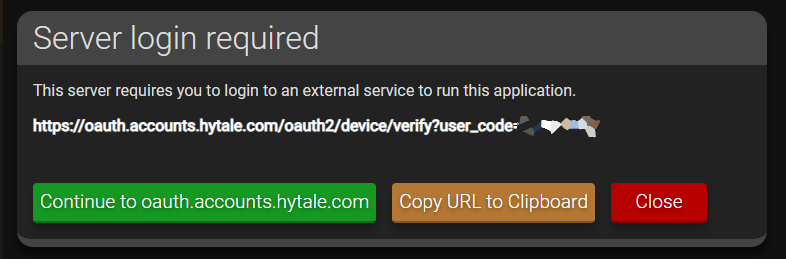
Click the Continue button to authenticate in a new tab:
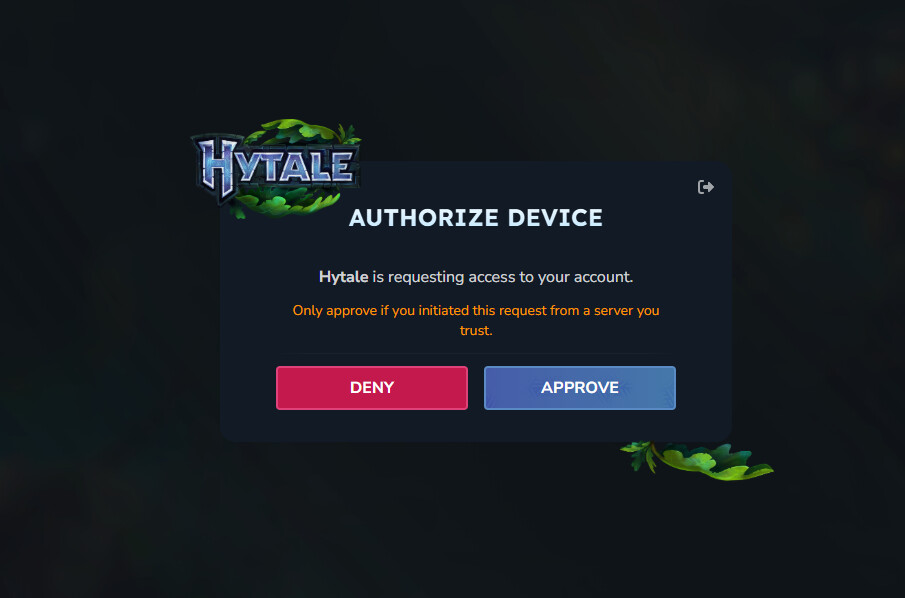
Once you have done this, you can close the tab. The update in AMP will continue automatically.
Logging the server in
You can now hit the green Start button to start your server for the first time, however the server itself also has to be authenticated to allow players to join. You will need to follow the exact same process as before. AMP will automatically configure the server to persist your login details.
IMPORTANT NOTE:
If you have multiple game profiles attached to your account, after authenticating the server you will see in the console output like the following:Fetching game profiles... Found 2 game profile(s) Multiple profiles available. Use '/auth select <number>' to choose: [1] name1 (xyz-uid) [2] name2 (xyz-uid)Run the relevant command in the AMP console to complete the authentication. For example,
/auth select 1.
Using the server
Operators
You can run /op add USERNAME to make them an in-game operator, and /op remove USERNAME to remove them.
Death penalties
You can configure death penalties on the server (like those possible in-game) by editing config.json in the relevant world folder in universe/worlds, and adding the following after the line “GameplayConfig”: “Default”, (starting on a new line):
"Death": {
   "RespawnController": {
     "Type": "HomeOrSpawnPoint"
   },
   "ItemsLossMode": "None",
   "ItemsAmountLossPercentage": 0.0,
   "ItemsDurabilityLossPercentage": 0.0
 },
Possible values for ItemsLossMode are None, All or Configured. Configured enables the percentages to be set yourself.
Common issues
Unable to join server - “Invalid Identity”, “Invalid Access Token”, “Illegal Parameter” or “Server authentication unavailable” error
The authentication for Hytale is super sensitive to the system time. If it’s out by even a minute, it won’t let you log in. Make sure that the system time is correct. You can verify this by going to https://time.is which will show you how accurate your system time is. This applies both to the server, and the system running the game client.
Server repeats “I18nModule.getMessages” error repeateadly
If you’re getting repeating errors like this:
at com.hypixel.hytale.server.core.modules.i18n.I18nModule.getMessages(I18nModule.java:315)
The Hytale server does not properly support some non-English locales. Set the system’s language to English and reboot.
AMP’s Status tab doesn’t reflect the Maximum Memory set for Java
This is not an “issue” as such, just a current limitation of AMP’s generic module, which runs Hytale.
Unlike the Minecraft module (which runs Minecraft Java instances), the generic module is not currently capable of reflecting the Maximum Memory (maximum heap memory size) set for Java in Hytale instances. Instead it just shows the total system RAM (or if relevant the Docker memory limit set for instances running in Docker).
This is a visual discrepancy only. The Java Maximum Memory will still be applied when running the server.